
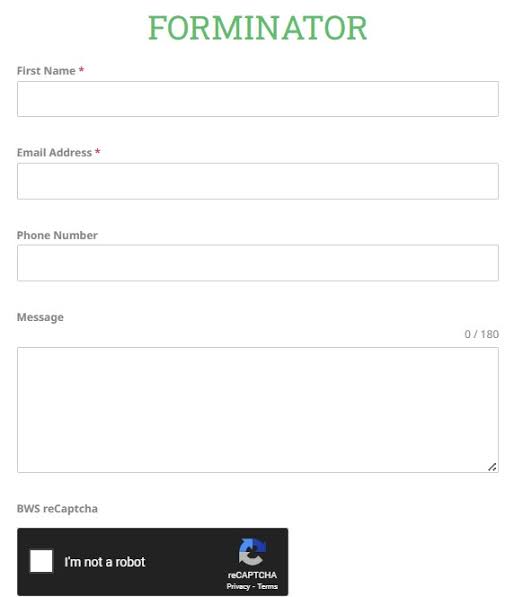
Spam submissions can quickly become a problem for any website that uses contact forms, registration forms, or surveys. Fortunately, Forminator makes it easy to integrate Google reCAPTCHA to help block bots while allowing legitimate users to submit forms.
This guide walks you through how to enable Google reCAPTCHA in Forminator, from generating your API keys to adding CAPTCHA protection to your forms.
Why Use Google reCAPTCHA with Forminator?
Google reCAPTCHA helps distinguish between real users and automated bots. By enabling it in Forminator, you can:
- Prevent spam form submissions
- Improve website security
- Protect contact, registration, and payment forms
- Reduce the need for manual spam moderation
Forminator supports multiple versions of Google reCAPTCHA, allowing you to choose the option that best fits your website.
Step 1: Create Google reCAPTCHA API Keys
Before configuring Forminator, you’ll need a Site Key and Secret Key from Google.
- Visit the Google reCAPTCHA Admin Console.
- Sign in with your Google account.
- Register your website.
- Select the reCAPTCHA version you want:
- reCAPTCHA v2 Checkbox
- reCAPTCHA v2 Invisible
- reCAPTCHA v3
- Enter your website’s domain.
- Accept Google’s terms and submit the form.
- Copy your Site Key and Secret Key.
Keep these keys handy—you’ll need them in the next step.
Step 2: Configure Google reCAPTCHA in Forminator
Once you’ve obtained your API keys:
- Log in to your WordPress dashboard.
- Navigate to Forminator → Settings.
- Open the Google reCAPTCHA section.
- Select the same reCAPTCHA version you registered with Google.
- Paste your Site Key and Secret Key into the appropriate fields.
- Click Save Settings.
Your website is now connected to Google reCAPTCHA.
Step 3: Add reCAPTCHA to a Form
To protect an individual form:
- Go to Forminator → Forms.
- Edit the form you want to secure.
- Click Add Field.
- Choose the Captcha field.
- Select Google reCAPTCHA as the provider.
- Save or update the form.
The form will now require Google reCAPTCHA verification before submission.
Step 4: Test Your Form
Always verify that everything is working correctly.
Depending on the version you’re using:
- reCAPTCHA v2 Checkbox: Users will see an “I’m not a robot” checkbox.
- reCAPTCHA v2 Invisible: Verification runs automatically with a small badge displayed.
- reCAPTCHA v3: Protection works silently in the background using a risk score without requiring user interaction.
Submit a test entry to ensure the form processes successfully.
Common Google reCAPTCHA Issues in Forminator
Invalid Site Key
This usually means:
- The Site Key and Secret Key don’t belong together.
- You’re using a different reCAPTCHA version than the one configured in Forminator.
- The website domain wasn’t added when generating the keys.
reCAPTCHA Doesn’t Appear
If the CAPTCHA field isn’t visible:
- Confirm you’ve added the Captcha field to the form.
- Verify that Google reCAPTCHA is enabled in Forminator Settings.
- Clear your website and browser cache if you’re using a caching plugin.
Verification Fails
If submissions continue to fail:
- Double-check the registered domain in your Google reCAPTCHA account.
- Ensure your API keys haven’t been copied incorrectly.
- Make sure your website is using the correct version (v2 or v3).
Which Google reCAPTCHA Version Should You Use?
For most WordPress websites:
- reCAPTCHA v2 Checkbox offers the best balance between security and user experience.
- reCAPTCHA v2 Invisible provides similar protection with fewer user interactions.
- reCAPTCHA v3 offers the smoothest experience since users typically never see a challenge, though it may require additional tuning based on your site’s traffic.
Frequently Asked Questions
Does Forminator support Google reCAPTCHA v3?
Yes. Forminator supports Google reCAPTCHA v2 Checkbox, v2 Invisible, and v3.
Can I use reCAPTCHA on multiple forms?
Yes. Once you’ve configured your Google API keys, you can add the Captcha field to as many Forminator forms as needed.
Why am I getting spam even with reCAPTCHA enabled?
No CAPTCHA solution blocks every spam submission. Consider combining reCAPTCHA with Forminator’s additional spam prevention features, such as honeypot fields, email validation, and submission limits.
Final Thoughts
Enabling Google reCAPTCHA in Forminator is one of the easiest ways to protect your WordPress forms from automated spam. After generating your API keys, configuring Forminator, and adding the Captcha field to your forms, your website will have an additional layer of security while maintaining a smooth experience for legitimate visitors.
Whether you choose reCAPTCHA v2 or v3, keeping your forms protected can save time, reduce spam, and improve the overall reliability of your website.