
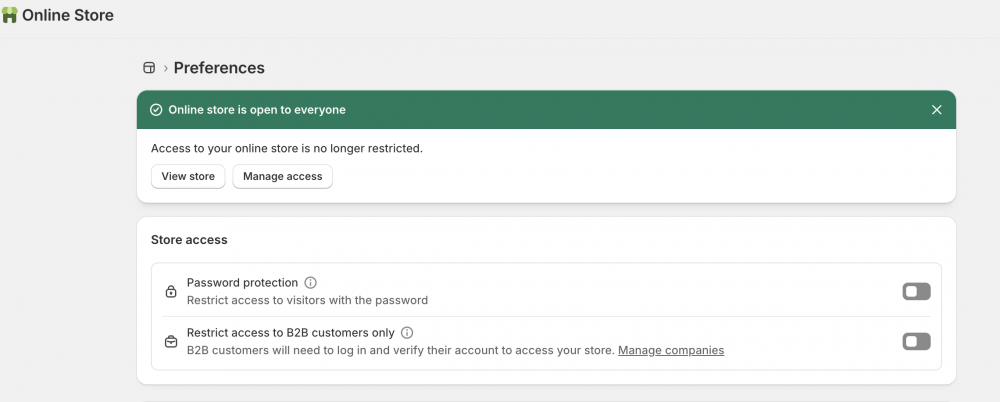
If you’ve finished building your Shopify store and are ready to welcome customers, one of the final steps is turning off password protection. By default, many new Shopify stores are password protected, preventing visitors from accessing your storefront until you’re ready to launch.
Here’s how to remove the password page and make your Shopify store publicly accessible.
How to Remove Password Protection in Shopify
Follow these simple steps:
- Log in to your Shopify Admin.
- Navigate to Online Store → Preferences.
- Scroll down to the Store Access or Password Protection section.
- Uncheck Password protection or Restrict access to visitors with the password (the wording may vary depending on your Shopify admin version).
- Click Save.
Once saved, your online store will be accessible to anyone visiting your website.
Alternative Method
Some Shopify stores display a notification banner at the top of the Online Store → Themes page indicating that the store is password protected.
If you see this message:
“Your online store is password protected.”
Simply click Remove password from the banner and confirm your changes.
Why Is My Shopify Store Still Password Protected?
If you don’t see the option to remove password protection, one of these situations may apply:
You’re Using a Development Store
Development stores created for testing or building websites remain password protected until they are transferred to a paying merchant account.
You Haven’t Selected a Shopify Plan
If you’re still using a free trial without choosing a paid Shopify subscription, Shopify requires password protection to remain enabled. Once you select a paid plan, you’ll be able to disable the password page.
Benefits of Removing Shopify Password Protection
Turning off password protection allows you to:
- Launch your online store to the public
- Enable customers to browse products
- Accept online orders
- Allow search engines to begin indexing your website
- Share your store on social media and through marketing campaigns
Without removing the password page, visitors will only see the password screen instead of your storefront.
Can You Turn Password Protection Back On?
Yes. If you need to temporarily hide your store for maintenance or updates, simply return to Online Store → Preferences and re-enable password protection.
This is useful when:
- Redesigning your website
- Adding large product collections
- Testing new themes
- Performing major updates
Frequently Asked Questions
Does removing password protection publish my Shopify store?
Yes. Once password protection is disabled, anyone with your store’s URL can access your website.
Will Google index my store after removing password protection?
Yes. Search engines can begin crawling and indexing your store once it is publicly accessible, although it may take some time before pages appear in search results.
Can I remove password protection during the Shopify free trial?
Generally, Shopify requires you to choose a paid plan before disabling password protection. Development stores also remain password protected until transferred.
Final Thoughts
Removing password protection is one of the final steps before launching your Shopify store. Once disabled, customers can browse your products, place orders, and discover your business through search engines.
Before making your store public, double-check that your products, payment methods, shipping settings, and domain are fully configured to ensure a smooth launch experience.