
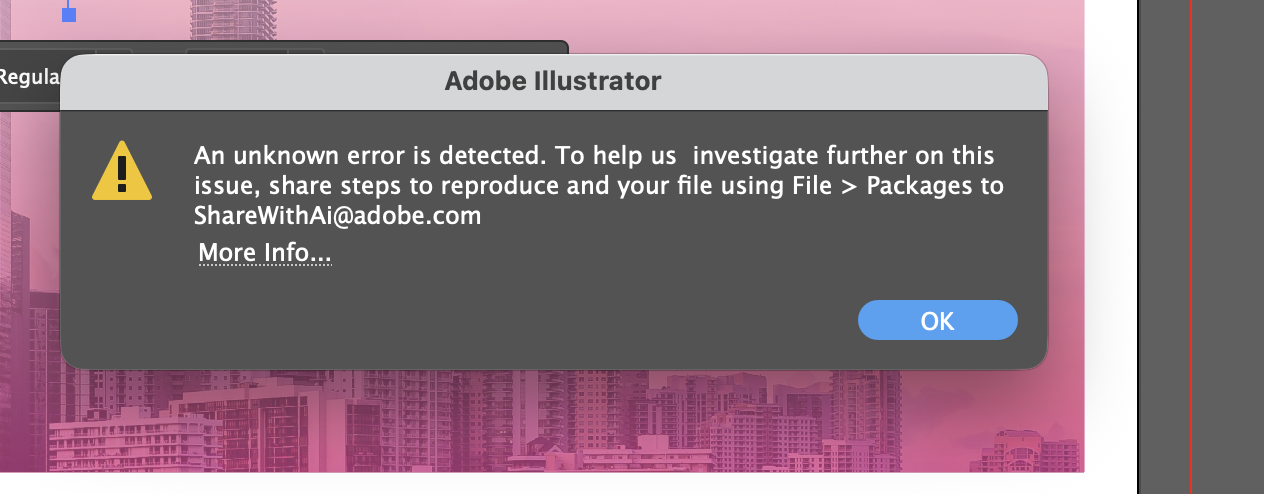
If you’re working in Adobe Illustrator and see the message “An unknown error is detected” when trying to save your file, you’re not alone. This is one of the most common—and frustrating—Illustrator errors, especially on large or print-ready files.
The good news: the issue is almost always fixable without losing your work.
Below is a complete guide explaining why this error happens and how to fix it quickly.
Why Adobe Illustrator Shows the “Unknown Error” When Saving
Despite the vague message, the root cause usually falls into one of these categories:
- Corrupted PDF compatibility data
- Problematic fonts
- Corrupt objects or effects
- Cloud or network save locations
- File name or permission issues
- Preference file corruption
Large-format designs, imported PDFs, and live effects increase the likelihood of this error.
Fix 1: Save a Clean Copy Without PDF Compatibility (Most Effective)
This is the most reliable fix.
- Go to File → Save As
- Choose Adobe Illustrator (.ai)
- Save the file to your Desktop
- Uncheck “Create PDF Compatible File”
- Click Save
Why this works: PDF compatibility data is a common source of corruption, especially in complex files.
Fix 2: Use “Save a Copy” Instead of Save
If Illustrator fails when overwriting the file:
- Go to File → Save a Copy
- Rename the file
- Save locally (Desktop)
This bypasses overwrite-related errors.
Fix 3: Export, Then Rebuild the File
If saving still fails:
- File → Export → Export As
- Export as PDF or SVG
- Open the exported file
- Immediately Save As → AI
This strips corrupted metadata while preserving the artwork.
Fix 4: Check for Corrupt Objects or Effects
Certain objects frequently cause save failures:
- Imported PDFs or EPS files
- Clipping masks
- Drop shadows or blurs
- Live effects
Try this cleanup process:
- Select all artwork
- Object → Ungroup (repeat until unavailable)
- Object → Expand Appearance
- Remove complex effects
- Try saving again
Fix 5: Fonts Can Break Illustrator Saves
Fonts are one of the most common hidden causes.
To test:
- Duplicate your file
- Type → Create Outlines
- Save the outlined version
If this works, one of your fonts is corrupted or not properly activated.
Fix 6: Reset Adobe Illustrator Preferences
Corrupt preferences can prevent saving.
Mac users:
- Quit Illustrator
- Reopen while holding Cmd + Option + Shift
- Confirm preference reset
Windows users:
- Hold Ctrl + Alt + Shift during launch
Fix 7: Check File Name and Save Location
Make sure:
- The filename has no special characters (
/ \ : * ? " < > |) - The name is not excessively long
- You are not saving to:
- iCloud
- Dropbox
- Google Drive
- Network or external drives
Always save locally first.
Fix 8: Last-Resort Recovery Method
If nothing else works:
- Create a new Illustrator file
- Copy artwork in small chunks from the original file
- Paste into the new document
- Save after each paste
When the save fails, you’ve found the corrupt element.
Best Save Settings for Large Print Files
For banners, stage backdrops, and large-format prints:
- File format: AI
- PDF Compatibility: Off
- Color mode: CMYK
- Raster Effects: 300 PPI
- Save location: Local drive
These settings reduce save errors and improve print reliability.
Final Thoughts
The “An unknown error is detected” message in Adobe Illustrator is misleading—but it rarely means your file is lost. In most cases, disabling PDF compatibility, saving locally, or removing a single corrupt element resolves the issue immediately.
If the error persists, rebuilding the file or outlining fonts will almost always recover your work.