
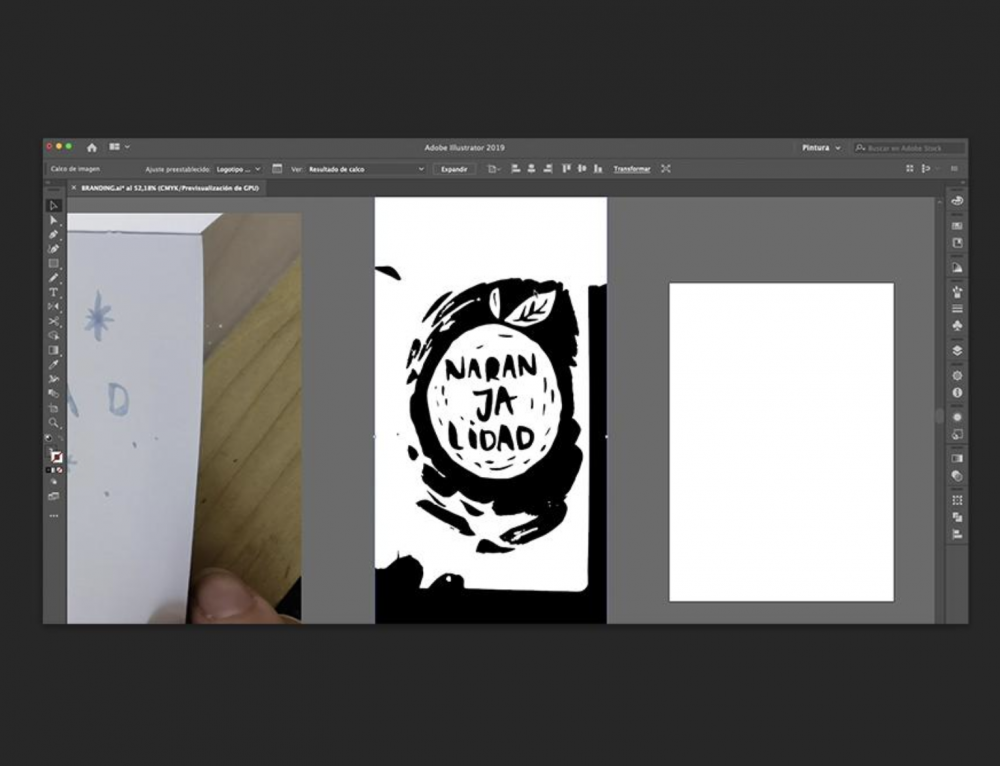
Turning a PNG into a vector file is essential if you want scalable graphics that stay sharp at any size. Whether you’re preparing a logo for print, creating artwork for a website, or working with a designer, understanding how to convert raster images into vector format can save time and improve quality.
This guide explains how to convert a PNG to vector using the most effective tools and methods available.
What Is a Vector File?
A PNG is a raster image, meaning it’s made of pixels. When you enlarge it, it becomes blurry.
A vector file, on the other hand, is made of paths and mathematical shapes, so it can scale infinitely without losing quality. Common vector formats include:
Best Method: Convert PNG to Vector in Adobe Illustrator
Adobe Illustrator is the industry standard for vector conversion and delivers the cleanest results.
Step 1: Import Your PNG
Open Illustrator, create a new document, and go to File → Place to insert your PNG image. Select it and click Embed if prompted.
Step 2: Use Image Trace
With the image selected, click Image Trace in the top toolbar.
Choose a preset based on your image:
- Black and White Logo → best for simple logos
- 6 Colors / 16 Colors → good for graphics
- High Fidelity Photo → for detailed images (less ideal)
Step 3: Adjust Settings
Open Window → Image Trace and fine-tune:
- Threshold for detail level
- Paths for accuracy
- Noise to remove small artifacts
Step 4: Expand the Image
Click Expand to convert the traced image into vector paths.
Step 5: Clean Up
Ungroup the image and remove unwanted shapes. Use the Direct Selection Tool to refine edges and simplify paths.
Step 6: Export as Vector
Go to:
- File → Save As → EPS (for print)
- File → Export → SVG (for web)
Free Option: Convert PNG to Vector in Inkscape


If you don’t have Illustrator, Inkscape is a powerful free alternative.
Steps:
- Import your PNG
- Go to Path → Trace Bitmap
- Choose settings like brightness cutoff or multiple scans
- Click OK and delete the original image
- Save as SVG
While effective, Inkscape may require more manual cleanup than Illustrator.
Online Tools (Quick but Less Accurate)


Online converters like Vectorizer or AutoTrace allow you to upload a PNG and instantly download an SVG.
These are useful for quick tasks but may produce:
- messy edges
- too many anchor points
- inaccurate shapes
Tips for Better Vector Results
To get a clean vector file:
- Use high-resolution PNGs
- Avoid complex gradients or photos
- Simplify colors before tracing
- Manually clean up paths after conversion
Logos, icons, and simple graphics convert best. Photographs usually do not.
PNG vs Vector: Why It Matters
- PNG → fixed resolution, can blur when resized
- Vector → scalable, print-ready, professional quality
If you’re working with branding, printing, or design assets, vector files are essential.
Final Thoughts
Converting a PNG to a vector file is straightforward once you understand the tools. Using Adobe Illustrator gives you the highest quality, while Inkscape offers a solid free alternative.
The key is not just converting, but refining the result to ensure clean, scalable artwork that looks professional in any format.