
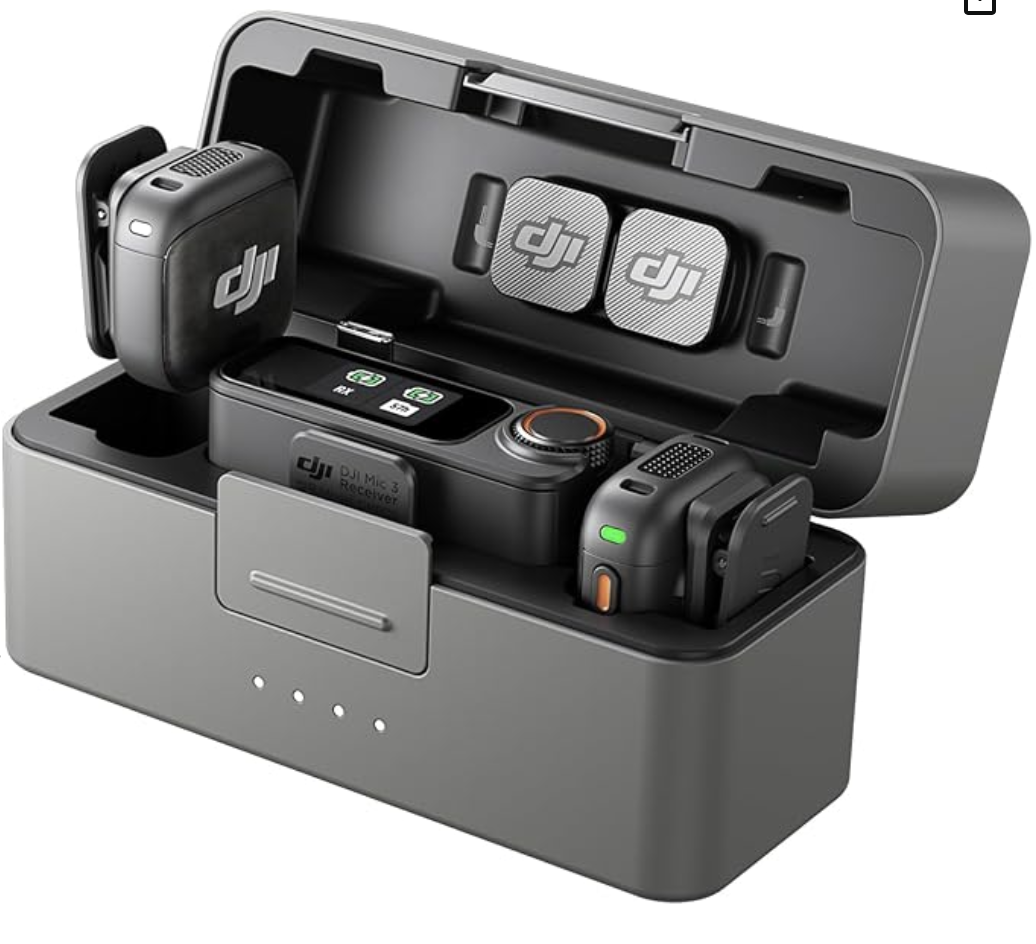
If you’re creating videos, podcasts, or social media content, getting clean audio is just as important as video quality. The DJI Mic, DJI Mic 2 and DJI Mic 3 are among the best wireless microphone systems available, and connecting them to your iPhone is simple once you know the right method.
This guide walks you through exactly how to connect your DJI Mic to an iPhone, including the best setup for high-quality audio and alternative wireless options.
Purchase DJI Mic 3 here.
Why Use DJI Mic With iPhone?
Using a DJI Mic with your iPhone significantly improves audio quality compared to the built-in microphone. Whether you’re filming interviews, vlogs, or reels, it provides:
- Crystal-clear sound
- Wireless flexibility
- Professional-grade recording
- Noise reduction features (DJI Mic 2)
Method 1: Connect DJI Mic to iPhone Using Receiver (Best Quality)


The most reliable way to connect your DJI Mic is by using the receiver (RX). This method ensures the highest audio quality and minimal latency.
What You Need:
- DJI Mic receiver (RX)
- Compatible cable or adapter:
- iPhone 15 and newer: USB-C to USB-C cable
- iPhone 14 and older: Lightning adapter
Step-by-Step Instructions:
- Turn on the transmitter(s) and receiver
- Connect the receiver to your iPhone using the correct cable
- Wait for your iPhone to automatically recognize the external microphone
- Open your recording app:
- Camera (video mode)
- Voice Memos
- Third-party apps (TikTok, Instagram, etc.)
- Start recording — audio will now come from the DJI Mic
Why This Method Is Best:
- Superior sound quality
- Stable connection
- No audio delay
Method 2: Connect DJI Mic 2 to iPhone via Bluetooth

If you’re using the DJI Mic 2, you can connect directly to your iPhone via Bluetooth without the receiver.
Steps:
- Turn on the DJI Mic 2 transmitter
- Activate Bluetooth pairing mode (hold the pairing button until it flashes)
- On your iPhone, go to Settings → Bluetooth
- Select the DJI Mic 2 from the device list
- Open a compatible recording app and start recording
Pros and Cons:
Pros:
- No receiver required
- Quick and simple setup
Cons:
- Slightly lower audio quality
- Possible audio delay
- Limited app compatibility
Best Apps for Recording With DJI Mic on iPhone
To ensure your iPhone uses the external microphone, consider these apps:
- Native Camera app (video mode)
- Voice Memos
- FiLMiC Pro (advanced controls)
- Third-party social apps (TikTok, Instagram)
Troubleshooting: DJI Mic Not Working With iPhone
If your DJI Mic isn’t connecting properly, try these fixes:
- Make sure the receiver is fully plugged in
- Restart both the iPhone and DJI Mic system
- Test with a different recording app
- Check audio input settings (if using third-party apps)
- Adjust gain levels on the receiver
Final Thoughts
Connecting a DJI Mic to your iPhone is one of the easiest ways to upgrade your audio quality instantly. For the best results, use the receiver connection for professional-grade sound. Bluetooth is convenient, but it’s better suited for casual recording.
Whether you’re filming YouTube videos, interviews, or social media content, the DJI Mic paired with an iPhone delivers clear, reliable audio every time.