
WordPress makes it easy to allow visitors to create accounts on your website. While this feature is useful for membership sites, online stores, forums, and community platforms, many website owners do not need public registrations enabled. Leaving registration open unnecessarily can increase spam accounts, security risks, and unwanted users.
If your website does not require user signups, disabling public user registration is a quick and effective way to improve WordPress security.
Why Disable Public User Registration in WordPress?
Keeping public registration enabled when it is not needed can create several issues:
- Increased spam registrations
- Fake user accounts
- Higher security risks
- Potential brute-force attacks
- Unnecessary database clutter
- Increased site management workload
Many WordPress websites, such as business websites, portfolios, blogs, and company sites, do not require public user account creation.
How to Disable Public User Registration in WordPress
Follow these simple steps:
Step 1: Log into Your WordPress Dashboard
Go to your WordPress admin panel:
yourwebsite.com/wp-admin
Enter your administrator username and password.
Step 2: Open General Settings
From the left-hand menu:
Dashboard → Settings → General
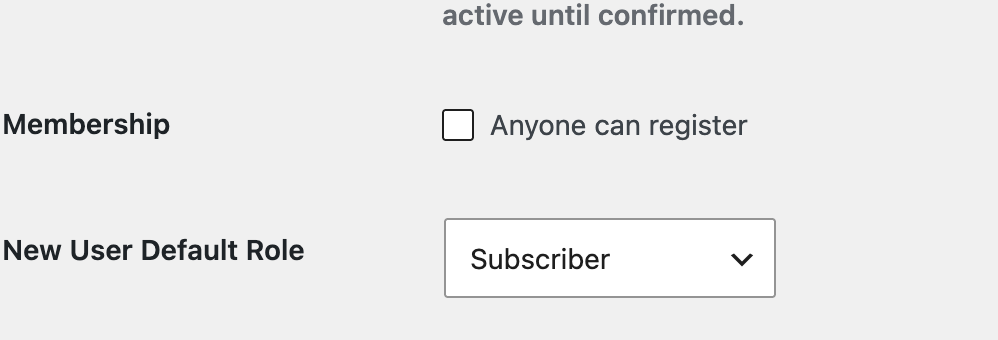
Scroll down until you find the Membership option.
Step 3: Disable Registration
You will see a checkbox labeled:
Anyone can register
If the box is checked:
- Uncheck Anyone can register
- Click Save Changes
Once saved, visitors will no longer be able to create new accounts on your WordPress website.
Can Administrators Still Add Users?
Yes. Disabling public registration only prevents visitors from creating accounts themselves.
Administrators can still manually create users by going to:
Users → Add New
This allows you to maintain control over who receives access to your website.
Additional Security Recommendations
Disabling registration is only one part of WordPress security. Consider implementing these additional protections:
Install a Security Plugin
Security plugins can help protect login pages and prevent malicious activity. Popular options include:
- Wordfence
- Sucuri Security
- All In One WP Security
- Solid Security
Enable Two-Factor Authentication
Adding two-factor authentication (2FA) helps secure administrator accounts from unauthorized access.
Add CAPTCHA Protection
CAPTCHA can help prevent automated bots from attempting login attacks.
Limit Login Attempts
Limiting failed login attempts reduces the chance of brute-force attacks.
Keep WordPress Updated
Always update:
- WordPress core
- Themes
- Plugins
Updates often include critical security patches.
What If You Need User Registration Later?
If you decide to create a membership site, online store, course platform, or community website, you can easily re-enable registration by returning to:
Settings → General
Then check:
Anyone can register
You can also assign a default user role such as Subscriber, Contributor, Author, or Customer depending on your site’s requirements.
Final Thoughts
Disabling public user registration in WordPress is a simple but important security step for websites that do not require visitors to create accounts. By turning off unnecessary registrations, you can reduce spam users, improve site security, and keep your website easier to manage.
For most standard business websites and blogs, keeping public registration disabled is considered a best practice.