
If you’ve accidentally left a breakout room in Zoom, don’t worry. Rejoining is usually simple, but the exact steps depend on how the meeting host has set things up. This guide walks you through how to get back into a Zoom breakout room quickly and what to do if you don’t see the option.
How to Rejoin a Breakout Room in Zoom
When breakout rooms are still active, Zoom typically gives you a way to jump right back in.
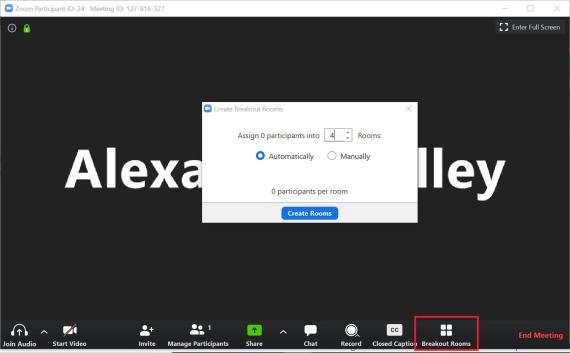
Start by looking at your meeting controls toolbar. If you see a “Breakout Rooms” button, click it. From there, you should have the option to:
- Rejoin your assigned breakout room
- Select a room (if the host allows room selection)
- Accept an invitation to re-enter the room
In most cases, clicking “Join” will take you straight back to your breakout session.
What If You Don’t See the Breakout Rooms Button?
If the option isn’t visible, it usually means one of the following:
The host may have already closed the breakout rooms, or you may not have been reassigned after leaving. Another possibility is that the host has restricted access and needs to manually place participants into rooms.
When this happens, your best move is simple:
- Use the main room chat to ask the host to reassign you
- Or speak up if your microphone is enabled
The host can then quickly move you back into the correct breakout room.
When You Can Choose Your Own Breakout Room
Sometimes hosts enable a feature that allows participants to choose their own rooms. If this is turned on, you’ll be able to:
- Click Breakout Rooms
- View a list of available rooms
- Select your room
- Click Join
This is the easiest scenario, as you won’t need help from the host.
Why You Might Not Be Able to Rejoin
There are a few common reasons why you can’t get back into a breakout room:
- Breakout rooms have ended
- The host hasn’t reassigned you yet
- The meeting settings restrict participant movement
- You left the room before receiving an invitation
In all these cases, the host controls access, so you’ll need to wait or request help.
Final Thoughts
Getting back into a Zoom breakout room is usually quick and straightforward. As long as breakout rooms are still active, you can rejoin through the Breakout Rooms button. If not, a quick message to the host will solve the issue.
Understanding how Zoom manages breakout rooms can save time and prevent confusion during meetings, classes, or virtual events.