
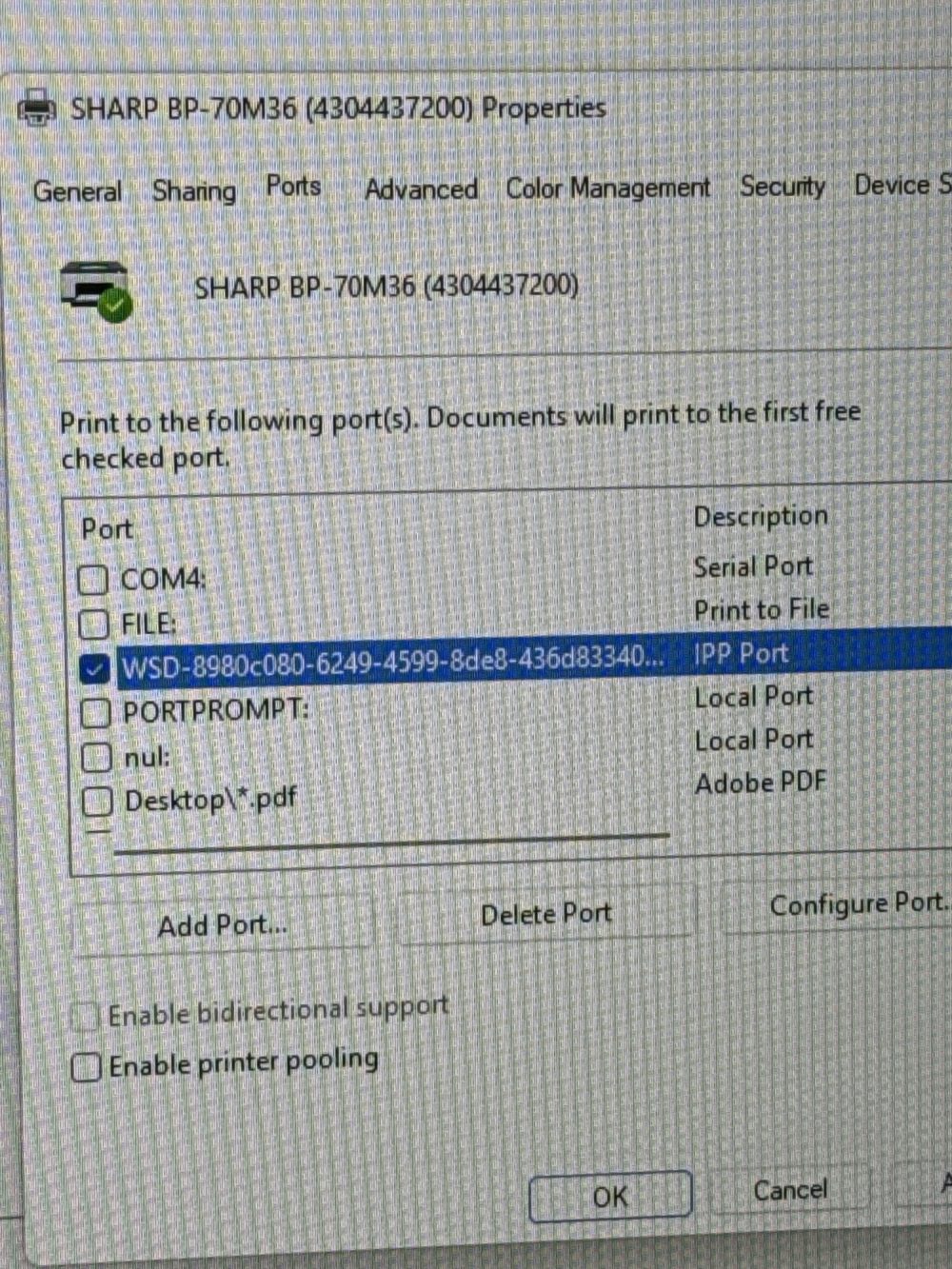
If your Sharp BP-70M36 printer is not printing from a Windows computer, the issue is often related to how the printer is connected to the system. Many Windows devices automatically install network printers using a WSD (Web Services for Devices) port, which can cause unreliable printing, offline errors, or print jobs that never reach the printer.
Switching the printer connection to a Standard TCP/IP port using the printer’s IP address is one of the most effective solutions.
This guide explains how to identify the issue and fix it.
Why the WSD Port Causes Printing Problems
When a Sharp printer such as the BP-70M36 is installed automatically, Windows may assign it a WSD port instead of a direct network connection.
While WSD allows automatic device discovery, it has several drawbacks:
- The printer may randomly show Offline
- Print jobs can get stuck in the queue
- Windows may lose connection after updates or network changes
- Printing can stop even though the printer is powered on
Sharp multifunction printers perform much more reliably when connected through a Standard TCP/IP port.
How to Check the Printer Port in Windows
First, verify if your printer is currently using a WSD port.
- Open Control Panel
- Click Devices and Printers
- Right-click Sharp BP-70M36
- Select Printer Properties
- Click the Ports tab
If you see something similar to this, the printer is using a WSD connection:
WSD-xxxxxxxxxxxxxxxx (IPP Port)How to Fix the Issue by Adding a TCP/IP Port
Follow these steps to switch the printer to a more stable network connection.
Step 1: Find the Printer’s IP Address
On the Sharp printer screen:
- Go to Settings
- Select System Settings
- Open Network Settings
- Locate the IP Address
It will look something like this:
192.168.1.50Step 2: Add a Standard TCP/IP Port
On your Windows computer:
- Open Printer Properties
- Go to the Ports tab
- Click Add Port
- Select Standard TCP/IP Port
- Click New Port
- Enter the printer’s IP address
Windows will create a new port connected directly to the printer.
Step 3: Switch to the New Port
After creating the port:
- Check the box next to the new TCP/IP port
- Uncheck the WSD port
- Click Apply
- Click OK
Your printer will now communicate directly with the device instead of relying on Windows discovery services.
Recommended Additional Fix: Disable SNMP Status
Sharp printers sometimes appear offline due to SNMP status checks.
To disable it:
- Go to Printer Properties
- Select the Ports tab
- Highlight the new TCP/IP port
- Click Configure Port
- Uncheck SNMP Status Enabled
- Click OK
This prevents Windows from incorrectly marking the printer as unavailable.
Benefits of Using a TCP/IP Printer Port
Switching from WSD to TCP/IP provides several advantages:
- More stable printer connection
- Faster communication between the PC and printer
- Reduced offline errors
- Better compatibility with Sharp multifunction printers
For office environments, this method is the recommended setup for printers like the Sharp BP-70M36.
Final Thoughts
If your Sharp BP-70M36 is not printing from Windows, the most common cause is the printer being installed with a WSD port instead of a Standard TCP/IP port. By switching to a direct IP connection, most printing issues can be resolved in minutes.
This simple configuration change can dramatically improve printer reliability and prevent future connectivity problems.