
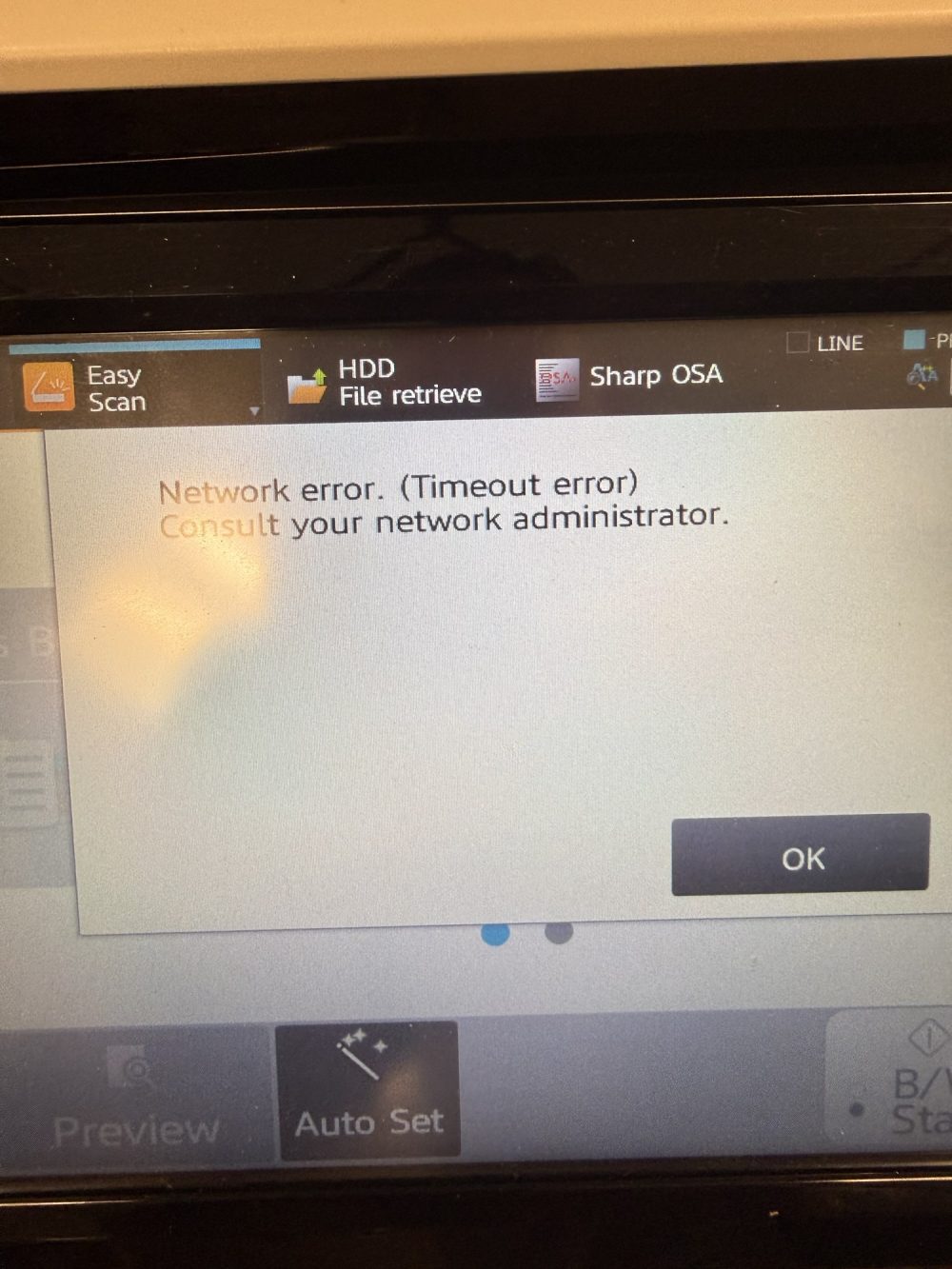
If your Sharp MX-3071 won’t scan to a network folder and displays a “Network error. (Timeout error)” message, the problem may not be with the copier itself.
One common cause is surprisingly simple: the computer or server hosting the destination scan folder is turned off or unavailable on the network.
When a Sharp MX-3071 uses Scan to Network Folder, the copier needs to communicate with the Windows computer or server containing the shared folder. If that device is offline, the Sharp cannot deliver the scanned document and may eventually report a network timeout.
Here is how to diagnose and fix a Sharp MX-3071 network timeout error when scanning.
What Does Network Error (Timeout Error) Mean on a Sharp MX-3071?
A network timeout generally means the Sharp attempted to communicate with a network destination but did not receive the expected response within the allowed time.
For example, a Sharp might be configured to send scanned documents to a Windows shared folder such as:
\\SERVERNAME\Scanner
In this example, SERVERNAME represents the Windows computer or server hosting the shared folder, while Scanner is the name of the shared network folder.
If that computer is turned off, disconnected from the network or otherwise unreachable, the Sharp cannot access the Scanner folder.
The copier may consequently display:
Network error. (Timeout error)
Consult your network administrator.
Check Whether the Scan Destination Computer Is Turned On
Before changing the Sharp’s network settings, check the simplest possibility first.
Make sure the computer or server containing the scan folder is turned on and connected to the network.
This is particularly important when the Sharp is configured for SMB or Scan to Network Folder.
If employees normally scan documents to:
\\SERVERNAME\Scanner
the computer identified by SERVERNAME needs to be available for the Sharp to access that shared folder.
Turning off that computer can therefore cause scanning to stop working even though printing to the Sharp continues normally.
Test the Network Folder From Windows
You can determine whether Windows can reach the scan destination before troubleshooting the Sharp itself.
On a Windows 11 or Windows 10 computer, press:
Windows Key + R
Enter the network path used by the scanner. For example:
\\SERVERNAME\Scanner
Press Enter.
If File Explorer opens the Scanner folder, the destination is accessible from that computer.
If Windows instead displays:
Windows cannot access \SERVERNAME\Scanner
or an error indicating that the network name or path cannot be found, there is likely a network, name-resolution, server availability or shared-folder problem that needs to be addressed.
Use Ping to Troubleshoot the Scan Server
Another useful troubleshooting step is to ping the computer hosting the scan folder.
Open Command Prompt or PowerShell and enter:
ping SERVERNAME
Replace SERVERNAME with the actual hostname configured as your scan destination.
If Windows returns:
Ping request could not find host SERVERNAME
the computer’s hostname isn’t currently being resolved.
This could be caused by DNS or local network configuration problems, or the destination computer may simply be unavailable.
Check the Server’s IP Address
If you know the IP address of the computer hosting the scan folder, you can test it directly.
For example:
ping 192.168.x.x
Replace 192.168.x.x with the actual local IP address of the destination computer.
If Windows reports:
Destination host unreachable
the computer at that address is not currently reachable from your PC.
You can also press Windows Key + R and test the shared folder directly:
\\192.168.x.x\Scanner
If Windows cannot access the folder using either the hostname or IP address, investigate the destination computer before making changes to the Sharp copier.
How to Find Your Windows IP Address
To see the network configuration of a Windows computer, open Command Prompt or PowerShell and enter:
ipconfig /all
Make sure there is no space between the slash and all.
Look for the active Ethernet or Wi-Fi adapter and find:
- IPv4 Address
- Subnet Mask
- Default Gateway
- DNS Servers
- DHCP status
A typical private network address might look like:
192.168.x.x
or:
10.x.x.x
The exact address will depend on how your local network is configured.
Check Whether the Sharp’s Scan Server Is Offline
Before changing SMB settings, passwords, firewall rules or IP addresses, physically check the computer or server hosting the scan folder.
If that machine is turned off, you may have found the problem.
Turn the computer back on and allow Windows enough time to start and reconnect to the network.
Then test the network path again from another Windows computer:
\\SERVERNAME\Scanner
If the folder opens again, try scanning from the Sharp MX-3071.
In many cases, no changes to the Sharp’s configuration are necessary.
Why Printing Can Work While Scanning Does Not
This situation can be confusing because users may still be able to print to the Sharp MX-3071 even though scanning to a folder has stopped working.
The two operations can use different network paths.
When printing, your computer communicates with the Sharp printer.
When using Scan to Network Folder, the Sharp communicates with the destination computer or server.
Therefore, the Sharp can remain online and accept print jobs while being unable to send scanned documents to an offline Windows computer.
Should You Change the Sharp MX-3071 IP Address?
Not necessarily.
A scan timeout does not automatically mean the Sharp’s IP address is incorrect.
Before modifying the copier’s IP address, ports or SMB configuration, verify that the destination computer or server is turned on, connected to the network and accessible.
You should also confirm that the shared Scanner folder still exists and that the hostname or IP address configured in the Sharp is correct.
Changing a working Sharp network configuration unnecessarily can create additional problems.
How to Prevent Sharp Scan to Folder Problems
If your organization depends heavily on Scan to Network Folder, the computer hosting the shared folder should ideally remain available whenever employees need to scan.
For a more reliable setup, businesses may consider hosting the shared scan folder on an always-on server or network-attached storage device rather than an employee workstation that is frequently shut down.
If an IP address is used for the destination, a static IP address or properly configured DHCP reservation can also help prevent scanning problems caused by the destination computer receiving a different IP address.
Sharp MX-3071 Scan to Network Folder Troubleshooting Checklist
When your Sharp MX-3071 displays a Network Error or Timeout Error, check the destination before assuming the copier is malfunctioning.
Start by confirming that the computer hosting the shared scan folder is powered on and connected to the network. Then verify that Windows can access the configured network path.
If the destination computer was simply turned off, turning it back on may restore scanning immediately without changing any settings on the Sharp MX-3071.
For businesses using shared network folders, this simple check can save considerable troubleshooting time when a Sharp copier suddenly stops scanning.