
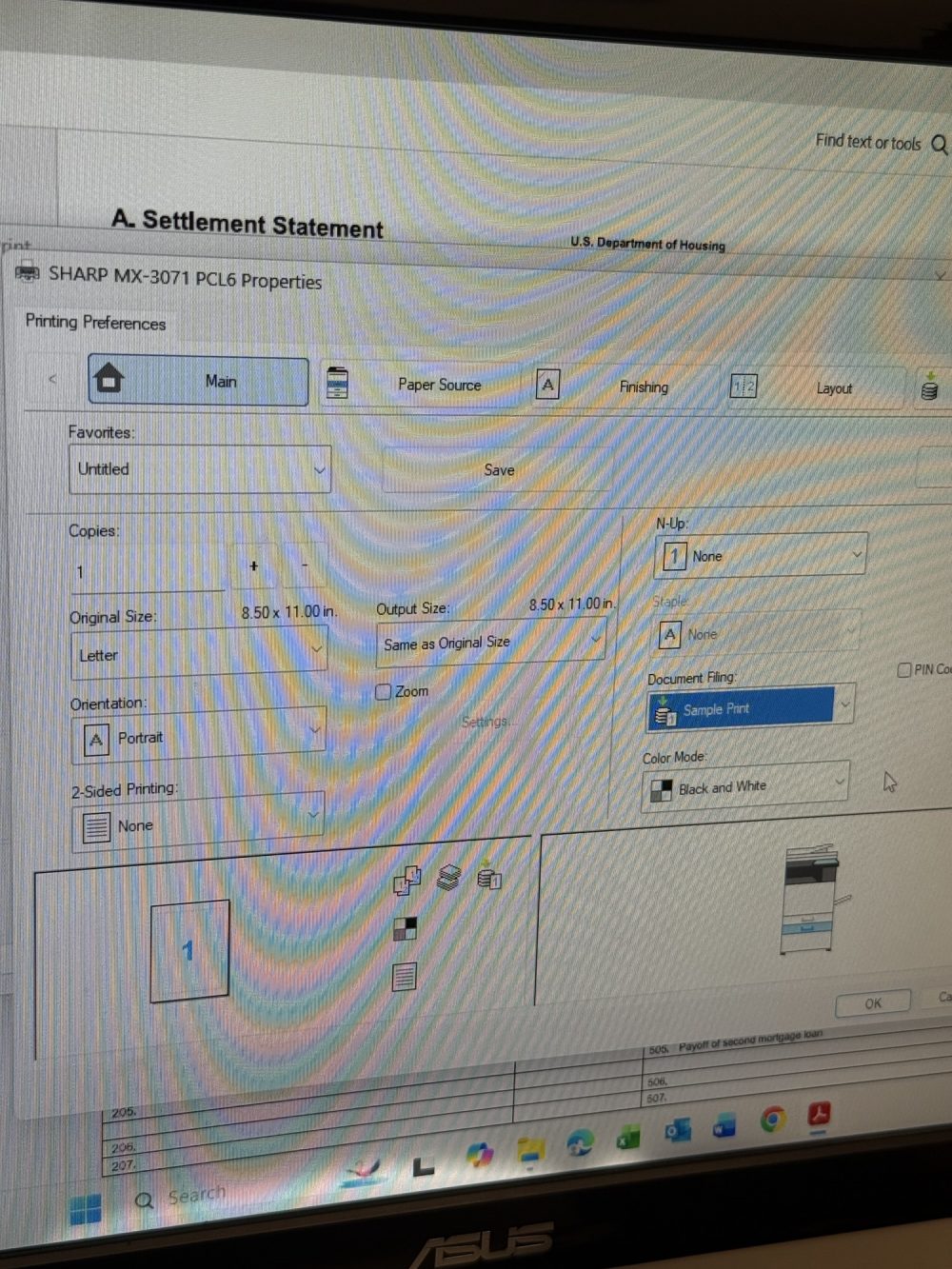
If your Sharp MX-3071 multifunction printer is making noise but failing to print from Tray 2, the issue is often related to printer settings, paper tray configuration, or a hardware pickup problem. While the printer may appear to receive the print job, it may not actually feed paper from the selected tray.
Here’s how to troubleshoot the issue and get your Sharp printer printing again.
Why Is the Sharp MX-3071 Not Printing From Tray 2?
When the printer attempts to print but only makes mechanical noises without producing a page, one of the following is typically the cause:
- Incorrect paper source selection
- Paper size or paper type mismatch
- Document Filing settings preventing normal printing
- Tray 2 not properly configured
- Worn or dirty paper pickup rollers
- Driver configuration issues
Check the Paper Source Settings
Open the Printing Preferences for your Sharp MX-3071 printer and navigate to the Paper Source tab.
Verify that:
- Tray 2 is selected as the paper source.
- The paper size matches what is loaded in Tray 2.
- The paper type (Plain, Letterhead, etc.) matches the printer’s tray settings.
If the printer detects a mismatch, it may refuse to print from that tray.
Disable “Sample Print” in Document Filing
One commonly overlooked setting is Document Filing.
If Document Filing is set to Sample Print, the printer may hold the print job instead of immediately printing it.
To disable it:
- Open Printing Preferences.
- Locate Document Filing.
- Change Sample Print to None or Off.
- Click OK and send the print job again.
This simple change often resolves situations where the printer appears to process a job but produces no output.
Verify Tray 2 Configuration on the Printer
On the Sharp MX-3071 control panel:
- Open the tray settings.
- Confirm Tray 2 is configured for the correct paper size (such as Letter or Legal).
- Verify the paper type matches the print job.
- Ensure the paper guides are snug against the paper stack.
Even a slightly misaligned paper guide can cause the printer to incorrectly detect the paper size.
Test Printing From Tray 1
A quick way to isolate the problem is to print from another tray.
If Tray 1 prints successfully while Tray 2 does not, the issue is likely specific to:
- Tray 2 settings
- Tray 2 paper detection
- Tray 2 pickup rollers
If neither tray prints, the problem may be related to the printer driver or the printer itself.
Inspect the Paper Pickup Rollers
If the printer makes noise but never feeds paper, the paper pickup rollers may be worn or dirty.
Signs include:
- The printer attempts to feed paper repeatedly.
- No paper enters the printer.
- You hear rollers spinning without grabbing the paper.
Cleaning or replacing the pickup rollers can often restore normal operation.
Update or Reinstall the Sharp Printer Driver
Driver issues can also prevent the printer from selecting the correct paper tray.
Consider:
- Reinstalling the Sharp MX-3071 PCL6 driver.
- Updating to the latest Sharp printer driver.
- Removing and re-adding the printer on your computer.
After reinstalling the driver, verify that Tray 2 is properly recognized.
Check for Error Messages
Look at the printer’s touchscreen for messages such as:
- Load Paper
- Check Tray 2
- Paper Size Mismatch
- Paper Type Mismatch
- Remove Misfeed
Even if the printer appears ready, these prompts can prevent a print job from completing.
Final Thoughts
If your Sharp MX-3071 is making noise but not printing from Tray 2, the most common causes are incorrect paper source settings, paper size mismatches, Document Filing being set to Sample Print, or worn paper pickup rollers.
By verifying the tray configuration, disabling Sample Print, matching paper settings, and checking the pickup mechanism, you can resolve most Tray 2 printing issues without requiring service. If the problem persists after completing these troubleshooting steps, the printer may require maintenance or replacement of the Tray 2 pickup assembly.