
If your WordPress website suddenly slows down, crashes, or experiences hosting issues, one hidden culprit could be an oversized debug.log file generated by WordPress debugging settings.
Many WordPress site owners unknowingly leave debugging enabled in production environments, causing WordPress to continuously write PHP warnings, plugin conflicts, and theme errors into a growing log file. Over time, this file can become several gigabytes in size and severely impact website performance.
What Causes a Huge WordPress debug.log File?
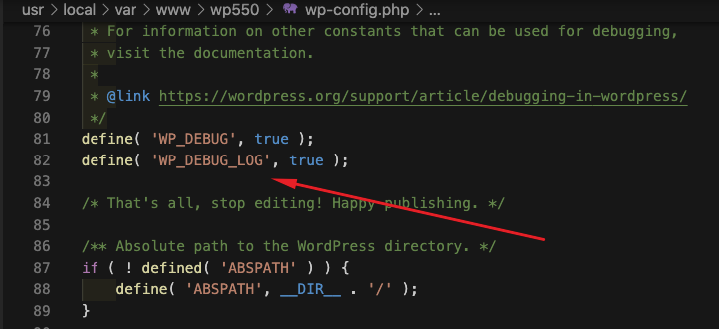
In many cases, the issue begins inside the wp-config.php file with debugging settings like these:
define('WP_DEBUG', true);
define('WP_DEBUG_LOG', true);
define('WP_DEBUG_DISPLAY', false);
These settings tell WordPress to:
- Enable debugging mode
- Save all PHP errors and warnings into a
debug.logfile - Hide errors from displaying publicly on the website
While this setup is useful during development, it can become dangerous on live websites.
Why WordPress Debug Logging Can Become a Problem
When a plugin, theme, or custom code repeatedly generates warnings or errors every second, WordPress records every single event inside the debug.log file.
This creates a continuous loop of log entries that can rapidly increase the file size.
Some websites generate thousands of log entries per minute, leading to:
- Massive
debug.logfiles - High CPU usage
- Slower website performance
- Increased disk space consumption
- Hosting account resource overages
- Website crashes or 500 errors
- Backup failures
In severe cases, hosting providers like GoDaddy may temporarily disable logging or intervene to stabilize the server.
Where Is the WordPress debug.log File Located?
The file is typically found here:
/wp-content/debug.log
You can access it through:
- cPanel File Manager
- FTP clients
- Hosting file managers
- SSH access
Common Causes of Continuous WordPress Error Logs
Several issues may trigger nonstop logging activity:
Outdated Plugins
Older plugins may use deprecated PHP functions incompatible with newer PHP versions.
Theme Conflicts
Custom themes or improperly coded templates can generate recurring warnings.
Custom Code Snippets
Code added to:
functions.php- Code snippet plugins
- Child themes
may continuously throw PHP notices.
PHP Version Compatibility Issues
Upgrading to PHP 8.2 or PHP 8.3 can expose deprecated functionality in older WordPress components.
Elementor or WooCommerce Warnings
Popular plugins such as:
can occasionally generate excessive warnings when conflicts exist.
How to Disable WordPress Debug Logging
For live production websites, it is recommended to disable debugging completely.
Update your wp-config.php file to:
define('WP_DEBUG', false);
define('WP_DEBUG_LOG', false);
define('WP_DEBUG_DISPLAY', false);
@ini_set('display_errors', 0);
This prevents WordPress from generating unnecessary debug logs while keeping your website stable.
Should You Delete the Existing debug.log File?
Yes. If the file has already become extremely large, you should:
- Disable debug logging
- Delete the old
debug.log - Monitor your website for recurring issues
Removing the oversized file can instantly free up hosting resources and improve performance.
Best Practices for WordPress Debugging
To avoid future issues:
- Only enable
WP_DEBUGduring development - Disable debugging on live websites
- Regularly update plugins and themes
- Use staging environments for testing
- Monitor server resource usage
- Review PHP compatibility before updates
Final Thoughts
A massive WordPress debug.log file is often a symptom of deeper plugin, theme, or PHP compatibility problems. While disabling logging can immediately improve server performance, website owners should still investigate the root cause of repeated errors.
Keeping WordPress debugging disabled on production websites is one of the simplest ways to improve stability, reduce server load, and prevent unexpected hosting issues.