
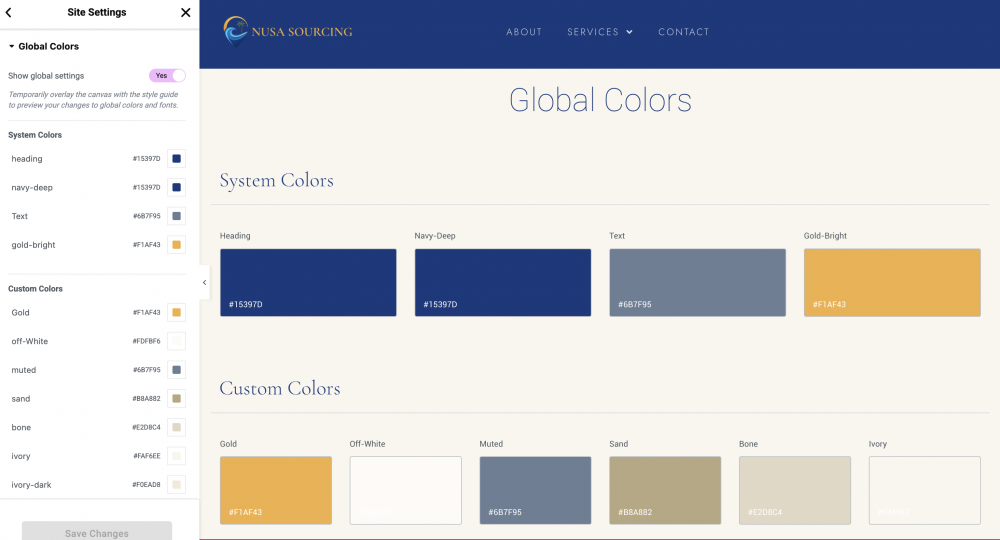
If you use Elementor for your WordPress website, Global Colors can save you a huge amount of time when managing your site’s design. Instead of manually changing colors on every page, Elementor allows you to update colors site-wide using its Global Colors feature.
In this guide, we’ll explain how to update Global Colors in Elementor, why they matter, and how to troubleshoot color changes that are not appearing correctly.
What Are Global Colors in Elementor?
Global Colors in Elementor are centralized color settings that can be applied across your website. They allow you to maintain consistent branding and quickly update your design without editing every individual widget or page.
Elementor includes several default Global Colors:
- Primary
- Secondary
- Text
- Accent
You can also create custom Global Colors for your website.
How to Update Global Colors in Elementor
Follow these simple steps to change your Elementor Global Colors:
Step 1: Open Elementor Editor
Log into your WordPress dashboard and open any page using Elementor.
Click:
Edit with Elementor
Step 2: Open Site Settings
Inside Elementor:
- Click the hamburger menu (☰) in the top-left corner
- Select:
Site Settings
Step 3: Access Global Colors
Under Site Settings, click:
Global Colors
You’ll now see all the global color presets currently being used on your website.
Step 4: Change the Colors
Click on any color swatch to edit it.
You can:
- Enter a HEX color code
- Use the color picker
- Adjust opacity and gradients
Once finished, click:
Update
Your changes will automatically apply to all Elementor elements using those Global Colors.
Why Use Elementor Global Colors?
Using Global Colors offers several benefits:
Consistent Branding
Maintain the same brand colors throughout your entire website.
Faster Design Updates
Need to rebrand your site? Update one color setting instead of editing dozens of pages manually.
Better Workflow
Global settings help streamline website management for agencies, freelancers, and business owners.
Improved Design Consistency
Avoid mismatched colors and inconsistent styling across pages.
Elementor Global Colors Not Updating? Here’s How to Fix It
Sometimes Elementor color changes may not appear immediately. Here are the most common fixes.
Regenerate Elementor CSS
Go to:
WordPress Dashboard → Elementor → Tools
Then click:
Regenerate CSS & Data
Clear Website Cache
If you use a caching plugin or CDN, clear all caches including:
- WordPress cache
- CDN cache
- Browser cache
Check for Manually Assigned Colors
Some widgets may have custom colors manually selected instead of using Global Colors.
To fix this:
- Edit the widget
- Replace custom colors with Global Colors
Disable Theme Color Conflicts
Some WordPress themes override Elementor styling.
Go to:
Elementor → Settings → General
Enable:
- Disable Default Colors
This allows Elementor to fully control your website colors.
Best Practices for Elementor Global Colors
To keep your design system organized:
- Use only a few core brand colors
- Name custom colors clearly
- Apply Global Colors to all widgets whenever possible
- Avoid excessive manual styling
Final Thoughts
Updating Global Colors in Elementor is one of the easiest ways to maintain a professional and consistent website design. Whether you’re rebranding your business or simply refreshing your site’s appearance, Elementor’s Global Colors feature makes the process fast and efficient.
By using Site Settings and Global Colors correctly, you can save time, improve consistency, and simplify future design updates across your entire WordPress website.